Step 1
Install Windows 10 version 20H1 (Build 2004) using Rufus
Use instructions Previous Version Windows 10 Using Rufus
Step 2
Create a local admin account
Step 3
Update Windows
- Only install drivers and accumulative updates
- Do not install feature updates to Windows 10 as this will break compatibility with Sanko appliance
Step 4
Go to Add Remove Programs
- Select Turn Windows features on or off
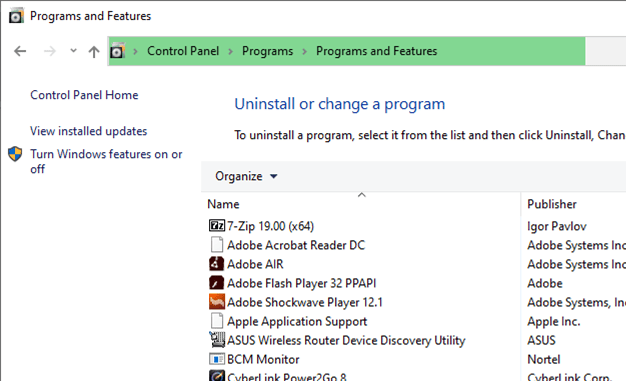
- Select check box for SMB 1.0/CIFS File Sharing Support
- Then Click OK
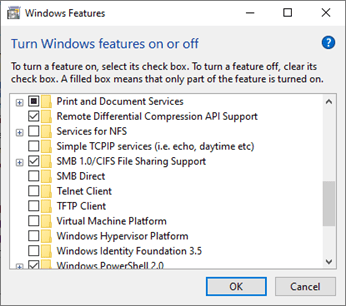
Restart will be required for changes to take effect.
Step 5
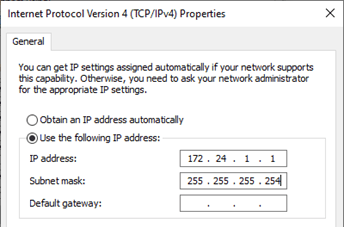
Change IP address and subnet mask to:
IP address: 172.24.1.1
Subnet mask: 255.255.255.252
Step 6
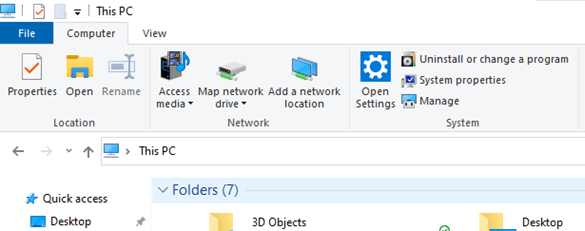
- Open This PC
- Under My Computer tab Select Map Network Drive
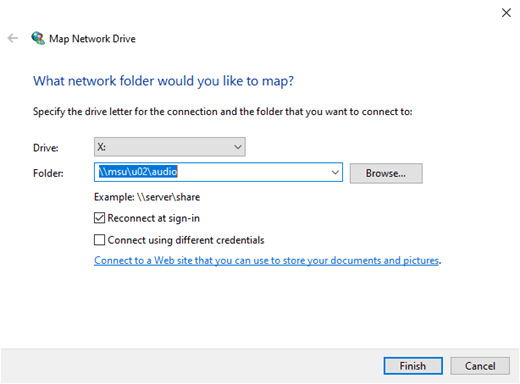
- For drive user which ever letter is the highest available
- For folder type: \\msu\u02\audio
- Click Finish
If successful MSU folder should be displayed in the Windows Explorer window.
 Jemuel|Griffith